
Navigating Among Chord Entry Text Boxes
When a chord entry text box is selected, use Right Arrow or Tab to move to the chord entry text box of the next beat.
Use Left Arrow or Shift-Tab to move to the chord entry text box of the previous beat.
Use Command-Left Arrow and Command-Right Arrow to move to the chord entry text boxes of the previous and next first beat of a bar, respectively.
Use Option-Left Arrow and Option-Right Arrow to move to the chord entry text boxes of the previous and next beat 1 or 3 of a bar, respectively. These work only in a song in 4/4 time.
Use Up Arrow and Down Arrow to move to the chord entry text boxes on the previous and next rows at the nearest horizontal position, respectively.
To Summarize:
|
→ or tab |
Move to next beat |
|
← or shift-tab |
Move to previous beat |
|
⌘-→ |
Move to next beginning of bar |
|
⌘-← |
Move to previous beginning of bar |
|
⌥-→ |
Move to next beat 1 or beat 3 |
|
⌥-← |
Move to previous beat 1 or beat 3 |
|
↓ |
Move to next row |
|
↑ |
Move to previous row |
When you move beyond the last bar of a song, a new bar is automatically appended. This makes it easy to enter chords without worrying about a song’s length. You just keep typing the chords and tabbing to the next chord entry text box and simply stop when you’re done.
As an example, suppose the chord entry text box of the last beat of the last bar is selected, as in the following screen shot.
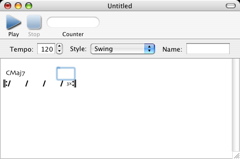
If the Right Arrow key is hit at this time, an additional bar will be automatically appended to the song, so that you can continue to type more chords.
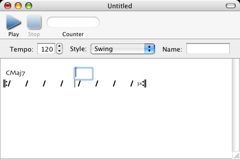
If a bar is added in this way by mistake, a quick way to remove it is to choose Edit > Undo.
Next: Cutting, Copying, Pasting, and Inserting Bars, Previous: Entering Chords in the Chord Editor, Up: Help Topics.