
Using the Chord Editor
Chords are entered in song document windows in MyJazzBand using its built-in chord editor. The chord editor uses the Cocoa features text completion and input validation to enable you to enter chords quickly and accurately. It also uses an optimal spacing algorithm to lay out and display the chords beautifully.
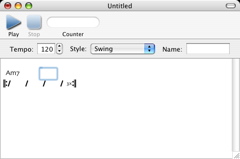
A chord entry text box is associated with each beat of a song. A chord can be typed into the currently selected chord entry text box. To select a chord entry text box, simply click on it, or use one of the arrow keys to move from one selected chord entry text box to another, as described in Navigating Among Chord Entry Text Boxes. See Entering Chords in the Chord Editor for information on how to enter chords. Here’s a song document window in which the chord entry text box corresponding to the third beat of the first bar is selected.
To perform an operation on bars (for example, to cut, copy, and paste them), one or more bars must first be selected. To select a bar, click anywhere on its notation (the area containing the “slashes”).
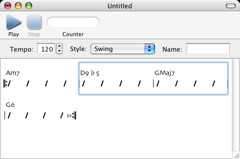
To select a number of bars, click on the notation of the starting (or ending) bar and drag and release the mouse button in the ending (or starting) bar. The song document window will “auto-scroll” if the mouse is dragged outside the window. Once one or more bars are selected, the operations described in Cutting, Copying, Pasting, and Inserting Bars can be performed on them. Here’s a song document window with the second and third bars selected.
To change the selection from a bar or a number of bars back to a chord entry text box, simple click on the latter.
Unlimited undo and redo are supported for all operations so any mistakes made in chord editor can be reversed.
Next: Entering Chords in the Chord Editor, Previous: Demo Mode and Registration, Up: Help Topics.