
A Guide Tour of MyJazzBand
MyJazzBand is very simple to use: launch it, type in your chords (navigating using the arrow keys), and click on the play button to generate and play the song.
Read about text completion to make typing chords a little easier. Read about different forms of the arrow keys to make navigating among the bars a little faster.
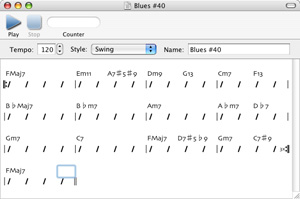
Suppose you want to enter the following chord chart:
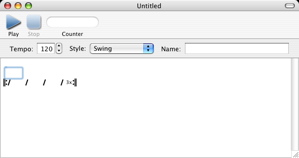
Launch MyJazzBand. A new song document window with a single bar appears.
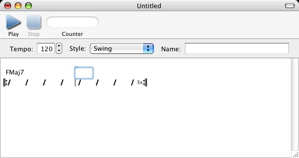
Type fmaj7, then hit Right Arrow four times or
Command-Right Arrow once to get to the first beat of the
second bar. Notice that the chord is automatically
capitalized and a new bar is automatically appended when you
move beyond the last bar.
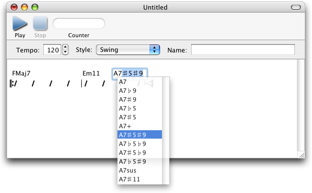
Type em11, then hit Right Arrow twice or
Option-Right Arrow once to get to the third beat. To type
A7♯5♯9, either type a7#5#9, where '#'
is the hash mark, or type a7, then F5 (function
key 5) to invoke text completion, then select
A7♯5♯9 using Down Arrow and then Return when the
list of completions pops up.
Continue typing in the chords. After entering the FMaj7 in the last bar, notice that the chorus now also ends there. To change the chorus to end at bar 12, select bars 1 to 12 by clicking on bar 1 (holding down the mouse button) and dragging to bar 12 (then releasing the mouse button).
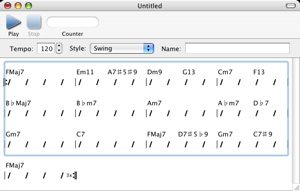
Then choose Edit > Set Chorus.
Now click on the play button to generate and play the accompaniment. By default MyJazzBand uses CoreMIDI's internal DLS synthesizer with appropriate patches already selected. To use external MIDI devices, or to change the patches used, read about changing settings in the preferences panel.
An alternative to entering the chord charts yourself is to look for and download Band-in-a-Box files from the Internet. These files should have filename extensions .sg? or .mg? where '?' is a letter or a digit. Open a Band-in-a-Box file in MyJazzBand by choosing File > Open. Then click on the play button to generate and play the accompaniment.
Next: Demo Mode and Registration, Up: Help Topics.